

















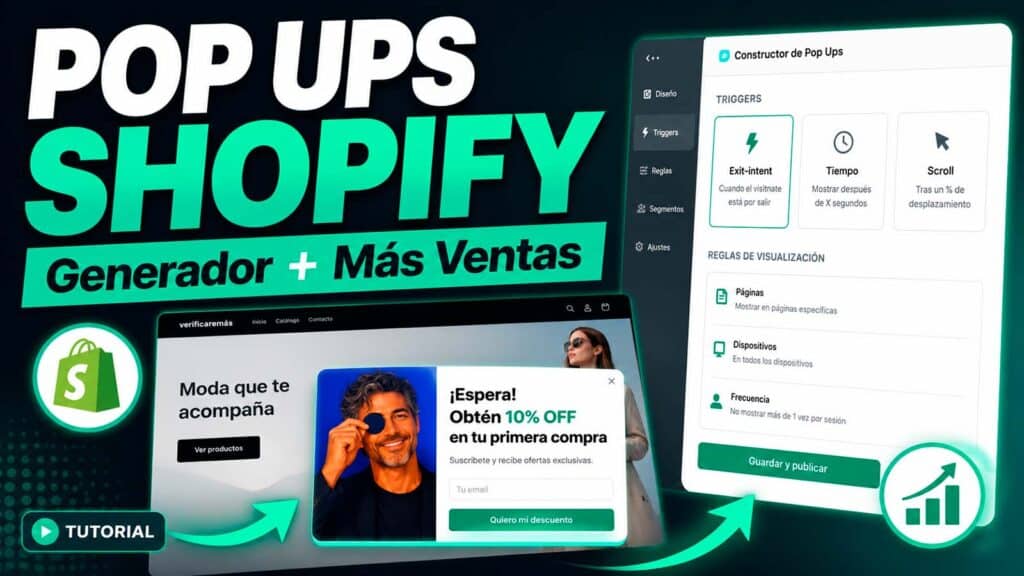
The Verify Emails Popups integration allows you to display recommendations using the catalog, cart, order history, and browsing behavior of visitors.
For all recommendations to work properly, the store may need to set up three elements:
- Activate the app in the Shopify theme.
- Set up relationships between products using Shopify Search & Discovery.
- Enable consent for analytics when the recommendation uses browsing history.
Not all types of recommendations need all three elements.
Summary of requirements
| Recommendation Type | Search & Discovery | Analytics Consent | Identified Customer | Order History |
|---|---|---|---|---|
| Related Products | Optional | No | No No | |
| Complementary Products | Yes | No | No | No |
| Frequently bought together | No | No | No Yes | |
| Based on previous purchases | No | No | Yes | Yes |
| Repurchase | No | No | Yes | Yes |
| Recently Viewed | No | Yes | No | No |
| Trends | No | Yes, based on visits | Not | recommended |
| Automatic recommendation | Recommended | Depends on the chosen recommendation | Depends on | Recommended |
1. Connect the store with Verify Emails Popups
From the CheckEmails Popups panel:
- Go to Shopify Integrations>.
- Enter the store domain, for example:
mitienda.myshopify.com - Tap Connect Shopify.
- Shopify will display the permissions requested by the app.
- Review your permissions and tap Install App or Update App.
- Return to the Verify Emails popups panel.
- Make sure that the integration is listed as Connected.
If your store was connected before you enabled access to orders or customers, then you may see the option to Reauthorize Shopify. In that case, the authorization must be completed again before purchase-based recommendations can work.
Reauthorization doesn’t delete existing products, orders, or campaigns.
2. Activate the App Embed in the theme
All popups need the EmailCheck App Embed to be active in the published topic.
On Shopify:
- Go to Themes Online > Store.
- Locate the published topic.
- Tap Customize.
- In the left sidebar, open App embeds.
- Look for Verify Email Popups.
- Turn on the switch.
- Tap Save.
- Open the store in a new window and check that the installation is listed as active in the EmailCheck panel.
Shopify allows you to activate and configure the Embeds apps from the theme editor. When your store uses multiple marketplaces, the settings may vary by market, so it’s a good idea to check the default marketplace and those that have their own customization.
If the Shopify theme is changed
When publishing a new topic, the App Embed must be reviewed again:
- Go to Themes Online > Store.
- Customize the new theme.
- Open the embeds app.
- Turn on Verify Email Popups.
- Save your changes.
Activating the app on an old theme does not guarantee that it will be active on the new theme.
3. Install Shopify Search & Discovery
Search & Discovery is Shopify’s free app that allows you to define related products and complementary products.
To install it:
- Sign in to the Shopify App Store.
- Search for Shopify Search & Discovery.
- Make sure that the developer is Shopify.
- Tap Install.
- Authorize the installation.
- The app will appear in Search & Discovery Apps>.
You don’t need to add the Visual Block of Search & Discovery add-on products to the theme. EmailCheck popups read the configured relationships and display them within the popup itself.
4. Set up product pairs
Complementary products
Complementary products are items that are used in conjunction with the product the customer is viewing.
Examples:
- Camera → memory card.
- Dress → belt.
- Sofa → cushions.
- Laptop → case.
- Coffee maker → capsules.
To set them up:
- Access Search & Discovery Apps>.
- Go to Product Recommendations.
- Tap Add recommendations.
- Select the main product.
- Under Complementary products, select up to 10 products.
- Tap Save.
Shopify allows you to assign up to 10 add-on products to each product. Products must be active and available; Shopify can exclude unpublished or out-of-stock products.
Example
For the DSLR camera product, the following can be configured as complementary:
- SD card.
- Tripod.
- Carrying bag.
- Additional battery.
- Cleaning kit.
When a visitor checks the camera, the popup will be able to display those products.
Important
The relationship is set up from the main product.
If configured:
Cámara → Trípode
it should not be assumed that Shopify has also set up:
Trípode → Cámara
When it is interesting to show the relationship in both directions, each product should be reviewed as the main product.
Related Products
Related products are alternatives similar to the product the visitor is viewing.
Examples:
- Another model of sneaker.
- A dress from the same collection.
- A table of similar size.
- A higher version of the same product.
Shopify automatically generates related recommendations based on, when it has enough information, co-made purchases, similar descriptions, and related collections. Automatic recommendations may change over time.
Therefore, it is not mandatory to manually configure the related products. However, doing so allows you to control which products appear.
To define them manually:
- Access Search & Discovery Apps>.
- Go to Product Recommendations.
- Tap Add recommendations.
- Select the main product.
- Under Related products, select up to 10 products.
- Decide how to combine the recommendations:
- Show manual recommendations only.
- Show manual first and then automatic ones.
- Tap Save.
For new or low-order stores, we recommend keeping auto-recommendations on as an alternative when there aren’t enough manual relationships.
Bulk configuration
When the store has many products:
- Access Search & Discovery Apps>.
- Go to Product Recommendations.
- Select multiple products.
- Tap Bulk edit.
- Add related and complementary products.
- Save your changes.
Shopify also syncs these relationships using its standard related and complementary product metafields.
5. Enable consent for analytics
Recently Viewed popups and certain Trending recommendations need to record the products viewed by the visitor.
In regions such as Spain and the rest of the European Economic Area, this tracking must be done after the visitor accepts the analytics cookies.
Publish Privacy Policy
Before activating the banner:
- Go to Policy Settings>.
- Review or create the Privacy Policy.
- It explains that the store and its suppliers use navigational information to:
- Analyze store usage.
- Remember products consulted.
- Personalize recommendations.
- Measure the performance of campaigns and popups.
- Save and publish politics.
Shopify requires you to have a published privacy policy in place before using your cookie banner.
Enable the cookie banner
- Go to Settings > Customer privacy.
- Go to Cookie Banner.
- Turn on Use automated setup.
For stores that sell in the United Kingdom or other countries in the European Economic Area, automated setup is the recommended option, as Shopify keeps the regions where the banner should show up to date.
It can also be configured manually:
- Tap Edit in the regions section.
- Select the European Economic Area, United Kingdom, and other applicable regions.
- Tap Done.
- Review the banner content.
- Customize its appearance and position.
- Tap Save.
- Use the View option to preview it.
Shopify allows you to configure the banner appearance, content, and position by region.
What happens according to the visitor’s choice
Visitor agrees to analytics
The app can:
- Record viewed products.
- Maintain an authorized browsing identifier.
- Build the recently viewed list.
- Send aggregated events to calculate trends.
- Measure impressions, clicks, and conversions.
- Show personalized recommendations.
Visitor rejects analytics
The application must not:
- Create a persistent identifier.
- Save products to
localStorage. - Maintain history between pages or visits.
- Send behavioral events.
- Show recommendations based on personal history.
In this case, the popup may not be displayed or use a non-personalized recommendation, such as related, complementary or new products.
Shopify notes that when the banner is active, the collection of analytics and personalization insights can be reduced because only visitors who have consented are counted.
6. Requirements of each type of popup
6.1 Related Products
What it shows
Products similar to the product the visitor is viewing.
What the trade should do
- Have the App Embed active.
- Have the products active and published.
- Optionally, set up related products in Search & Discovery.
You don’t need
- Analytics Consent.
- Connected client.
- Order history for that customer.
Shopify can generate recommendations automatically. Manual settings are used to improve or control the result.
6.2 Complementary products
What it shows
Products that match the product consulted or that can be added to the cart along with it.
What the trade should do
- Install Search & Discovery.
- Create the complementary product pairs.
- Check that products are active, published, and available.
- Activate the Embed App.
Example
Zapatos → Producto complementario: cinturón
Without a complementary relationship set up, the popup may not have products to display.
6.3 Frequently Purchased Together
What it shows
Products that other customers have purchased within the same orders.
What the trade should do
- Authorize Popups VerifyEmails to consult orders.
- Reauthorize the integration if the order permission is pending.
- Have sufficient order history.
- Keep products active and published.
You don’t need
- Set up pairs in Search & Discovery.
- Visitor Analytics Consent.
- That the visitor is logged in.
Recommendations are calculated using aggregated store order information.
In new stores, it may take time for the recommendation to become relevant. As long as there are not enough joint purchases, a popup of complementary or related products can be used as an alternative.
6.4 Based on previous purchases
What it shows
Products related to what the customer has previously purchased.
What the trade should do
- Authorize access to orders.
- Have customer accounts active.
- Get the visitor to sign in.
- Have orders associated with that customer.
You don’t need
- Search & Discovery.
- Consent to analytics cookies to consult the orders associated with the account.
If the visitor is not identified, it is not possible to know their previous purchases. In this case, a general recommendation such as related products, trends or news should be used.
6.5 Repurchase
What it shows
Products that the customer has already purchased and might need again.
It is especially useful for:
- Cosmetics.
- Food.
- Consumables.
- Cleaning products.
- Spare parts.
- Recurring supplements.
- Office supplies.
What the trade should do
- Authorize access to orders.
- Have customer accounts active.
- Get the visitor to sign in.
- Keep the previously purchased product for sale.
If the old product is no longer available, the app can use related products as an alternative.
6.6 Recently viewed
What it shows
The latest products consulted by the visitor.
What the trade should do
- Enable the cookie banner.
- Include the analytics category and, where applicable, personalization or preferences.
- Keep the privacy policy up to date.
- Activate the Embed App.
Expected behavior
- Before accepting: No persistent history is saved.
- After accepting: the products consulted begin to be registered.
- After reject: The popup doesn’t show or uses a non-personalized recommendation.
History cannot be reconstructed retroactively. Products viewed before accepting cookies should not be added later.
6.7 Trends
What it shows
Products that are receiving more visits, interactions, or purchases during a given period.
What the trade should do
- Activate the Embed App.
- Maintain active and published products.
- Enable analytics consent when the trend is calculated using visits or clicks.
- Generate enough traffic to get a representative ranking.
Consent
- Trends based on visits or clicks: Require analytics consent.
- Trends based solely on aggregated orders: they do not depend on browsing consent.
Visitors who decline analytics should not generate events used to calculate navigation-based trends.
6.8 Automatic recommendation
What it shows
The app automatically selects the most appropriate recommendation source based on the available context.
You can use:
- Previous purchases by the customer.
- Recently viewed products.
- Complementary products.
- Related products.
- Products frequently purchased together.
- Trends.
- New products or products from the same collection as an alternative.
For the best result
The merchant must complete all the setup:
- Activate the Embed App.
- Authorize access to products and orders.
- Set up add-on products.
- Review related products.
- Enable the cookie banner.
- Allow customers to sign in.
- Maintain a properly published catalog.
The automatic recommendation can work without all this information, but it will use fewer sources and deliver less personalized results.
7. Difference Between Analytics Consent and Marketing Consent
These two consents are not equivalent.
Analytics consent
Authorises the storage and processing of information on the visitor’s browsing.
It is used for:
- Recently viewed.
- Trends by visits.
- Measurement of interactions.
- Behavior-based personalization.
It is managed by the Shopify cookie banner.
Marketing consent
Authorise the store to send commercial communications by email or SMS.
It is used when the popup:
- Capture an email.
- Sign up the visitor for a newsletter.
- Give a coupon in exchange for a subscription.
- Create a customer subscribed to Shopify marketing.
It is managed by the consent box included in the popup form.
Accepting analytics cookies does not mean accepting commercial communications. Similarly, subscribing to a newsletter does not automatically imply accepting browsing tracking.
Shopify includes separate settings for cookie consent and for email or SMS marketing.
8. Check that everything works
General Test
- Run a test campaign.
- Check that the App Embed is active.
- Open the store in a private window.
- Visit a page where the popup should appear.
- Run the configured trigger.
- Check that the images, prices, discounts, and links are correct.
- Add a product to the cart from the popup.
- Check the result in the Popups Analytics VerifyEmails.
Try complementary products
- Configure:
Producto A → Complementario: Producto B - Open the Product A page.
- Activate the popup.
- Check that Product B is listed.
Try Related Products
- Set up related products for Product A.
- Open the Product A page.
- Verify that the expected manual or automatic products are displayed.
Try Recently Viewed
First test:
- Open the store in a private window.
- Reject analytics cookies.
- Visit various products.
- Verify that a persistent history is not preserved.
Second test:
- Clear your cookies or open another private window.
- Accept analytics cookies.
- Visit two or three products.
- Navigate to a page where the popup is active.
- Check that the visited products are listed.
Clearing cookies allows you to display the banner again and repeat the consent tests.
Test purchase-based recommendations
- Use a test customer with previous orders.
- Sign in as that customer.
- Visit a page where the campaign is active.
- Check that products related to your orders are listed.
- Log out.
- Check that your campaign uses a general recommendation or stop showing.
9. Troubleshooting
Popup doesn’t appear
Check:
- That the campaign is published.
- That the App Embed is active in the published topic.
- Match URL rules.
- Let the trigger be fulfilled.
- That the frequency has not blocked a new viewing.
- That the popup is enabled for the device used.
- That the right market has been set up.
No complementary products appear
Check:
- Search & Discovery is installed.
- That the pairs are saved.
- That the relationship is configured from the product that is being visited.
- That the products are active.
- That they are published in the Online Store channel.
- That they have stock when the store hides out-of-stock products.
No previous purchases appear
Check:
- The client is logged in.
- That you have previous orders.
- That the orders are associated with the same customer.
- The integration has the permission to read orders.
- That the purchased products are still active.
No recently viewed products appear
Check:
- That the visitor has accepted analytics.
- That you have visited products after accepting.
- That the browser is not blocking storage.
- That the popup has enough registered products to be displayed.
- That it is not being tested repeatedly with the frequency of the campaign already exhausted.
Trends shows little data
It is normal when:
- The store has low traffic.
- Many visitors reject analytics.
- The campaign has just been published.
- The selected period is too short.
- Products have few visits or orders.
Final checklist
Before you turn on all recommendations:
- Shopify is connected.
- Permissions are up to date.
- The App Embed is active in the published topic.
- The App Embed has been revised in the active markets.
- Search & Discovery is installed.
- Add-on products are configured.
- Related products have been reviewed.
- The products are active and published.
- The privacy policy is posted.
- The cookie banner is active.
- Analytical acceptance and rejection have been tested.
- Customer accounts are enabled.
- There is sufficient order history.
- Each type of popup has been tested in a private window.